-
Shop
- Adidas
- Advanced Technologies
- Apple Accessories
- Best-Sellers
- Car Accessories
- Dating & Social Skills
- Digital Resources
- AI Skills
- Beauty
- Car Buying & Ownership
- Cozy Feast Collection
- Electronics & Technology
- Financial Education
- Hobbies
- Home Styling & Organization
- Mindset
- Online Business
- Parenting & Child Development
- Personal Style & Fashion
- Pet Lifestyle & Wellness
- Smart Life with AI
- Travel Planning
- Wellness
- Yoga & Fitness
- Education & Learning
- Family & Parenting
- Fashion
- Alexander McQueen
- Bags
- Bags & Wallets
- Balenciaga
- Belts
- Blazers
- Blouses & Shirts
- Bottega Veneta
- Brunello Cucinelli
- Burberry
- Chanel
- Chloé
- Dior
- Dolce & Gabbana
- Dresses
- Etro
- Fendi
- Gucci
- Hats & Hair Accessories
- Jacquemus
- Jewelry
- Jil Sander
- Keychains
- Kiton
- Luggage
- Luggage Bags
- Miu Miu
- Off-White
- Outerwear
- Prada
- Rick Owens
- Saint Laurent
- Socks & Tights
- The Row
- Tom Ford
- Valentino
- Valentino Garavani
- Versace
- Vivienne Westwood
- Watches
- Furniture
- Gadgets
- Health & Beauty
- Health & Wellness
- Home & Garden
- Kids & Babies
- Kitchen
- Lighting
- Patio, Lawn & Garden
- Personal Growth
- Pet Care
- Pet Supplies
- Pets
- Shoes
- Sport & Outdoors
- Stress Relief & Relaxation
- Travel
- Wealth
- Popular
- Best deals
Auto-Focus 1080p Projector: 5GHz WiFi, Bluetooth, 150in
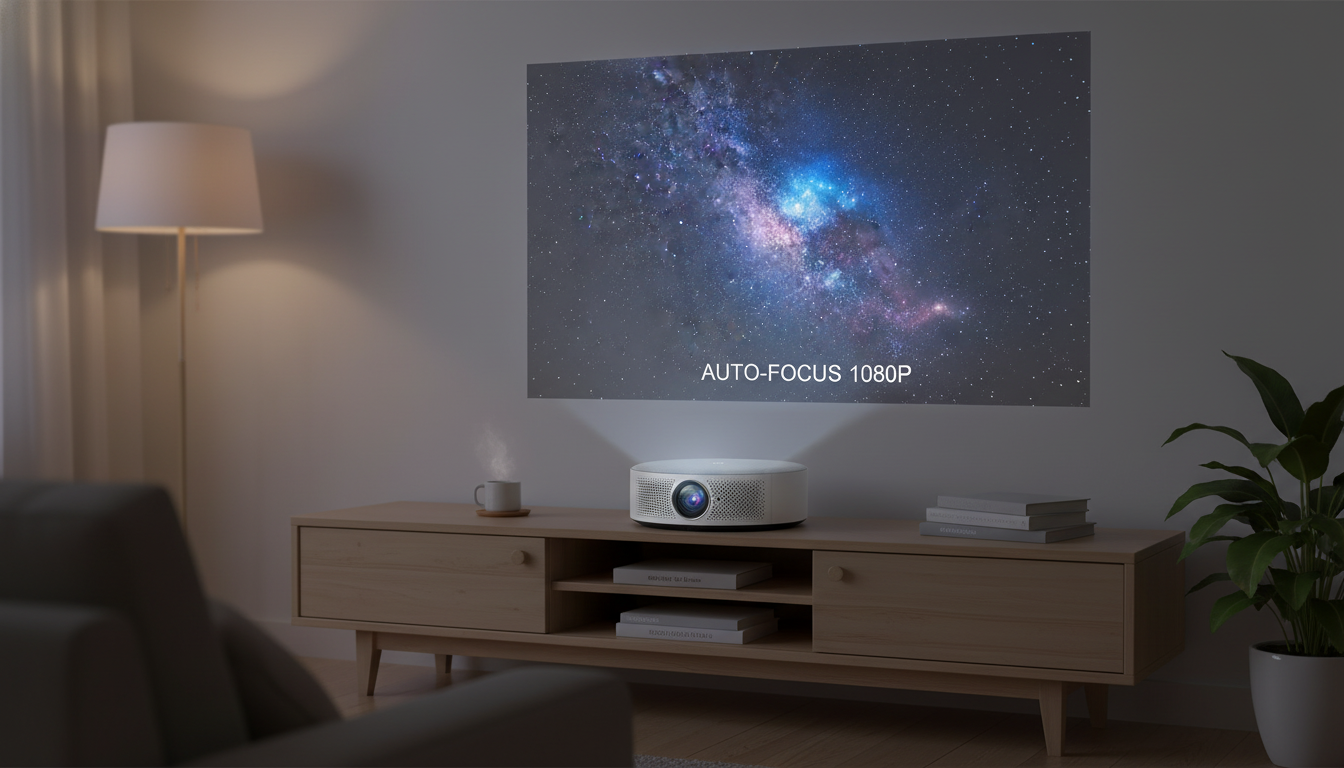
Auto Focus Full HD Projector with 5G WiFi, Bluetooth, and 150″ Display Support
A Full HD projector with auto focus, faster 5G WiFi streaming, Bluetooth audio options, and support for a large 150-inch display is built for simple setup and flexible home viewing. The payoff is practical: less fiddling after you move the unit, smoother wireless playback on compatible networks, and easier sound upgrades when the built-in speaker isn’t enough. Below is what these features do in real use, what to check before buying, and how to get a sharp, comfortable picture with minimal hassle.
What this projector is designed to do
- Deliver a 1080p picture suited for movies, sports, and casual gaming in a darkened room.
- Reduce setup friction with auto focus, helping keep text and subtitles crisp after moving the unit.
- Enable wireless streaming and casting with 5G WiFi for lower latency and smoother playback on compatible networks.
- Offer easier audio setups via Bluetooth when pairing with speakers or soundbars.
- Scale up viewing size for big-screen nights with up to 150-inch display support (best results depend on room light and throw distance).
Key features that matter day to day
Auto focus that saves time (when placement changes)
Auto focus is most noticeable when the projector gets moved: from coffee table to shelf, from living room to bedroom, or when the screen distance changes. Instead of manually turning a focus ring and re-checking corners, the unit can lock focus quickly so captions, scoreboards, and menus stay readable. If the image looks sharp in the center but soft at the edges, that’s often a placement and angle issue rather than something focusing can “fix.”
Full HD (1080p) resolution for cleaner detail
Native 1920×1080 is a strong baseline for streaming shows, sports, and console play. Compared with lower-resolution models, you’ll typically see cleaner text edges, less shimmer in UI elements, and better definition in faces and fine textures—especially at larger screen sizes.
5G WiFi for smoother wireless streaming
On a 5GHz network (often shown as “5G” WiFi), many homes get better throughput and less interference than crowded 2.4GHz channels. That can translate to fewer buffering hiccups and more stable casting—assuming your router supports 5GHz and the projector isn’t separated by multiple thick walls. For standards details and device certification context, see the Wi‑Fi Alliance.
Bluetooth for easier audio pairing
Bluetooth can be the cleanest way to connect a speaker or soundbar without running a cable across the room. The key spec to verify is direction: many projectors support Bluetooth output (projector to speaker), while some only support Bluetooth input (phone to projector speaker). For background on Bluetooth versions and profiles, reference the Bluetooth SIG.
150-inch display support (with realistic expectations)
A bigger image is more immersive, but it also magnifies room and setup issues. Ambient light, wall color, and screen material can wash out blacks and make the picture look “flat.” For many rooms, an 80–120 inch image is the sweet spot; pushing toward 150 inches tends to work best in a darker space with careful placement.
At-a-glance specs and buying checklist
| What to decide | Why it matters | Practical tip |
|---|---|---|
| Screen size target (up to 150″) | Bigger images demand better light control and placement | Test 80–120″ first; scale up after confirming brightness is comfortable |
| Room lighting | Ambient light reduces contrast and washes out blacks | Use curtains or a darker viewing space for movie nights |
| Placement distance and height | Incorrect placement leads to tilt, keystone, and softer edges | Center the lens to the screen when possible; avoid extreme angles |
| Streaming method (WiFi vs HDMI) | Wireless can be convenient; HDMI can be most stable | Use 5GHz WiFi when available; keep HDMI as a fallback |
| Audio path (Bluetooth vs wired) | Audio lag or interference can affect lip-sync | If Bluetooth shows lag, try wired audio or adjust delay on the speaker/soundbar |
- Confirm native resolution: look for Full HD (1920×1080) rather than only “supported” input.
- Plan connectivity: HDMI is still the most universal option for streaming sticks and consoles. For HDMI specs and cable guidance, see HDMI.org.
- Be cautious with keystone: heavy digital correction can reduce edge sharpness because it resamples the image.
- Think about audio early: built-in speakers are convenient, but external audio usually provides a bigger upgrade than chasing the last bit of sharpness.
Best use cases: who it fits
Getting the sharpest picture with auto focus
Wireless and Bluetooth: smooth streaming and better sound
Common setup mistakes to avoid
Product options available
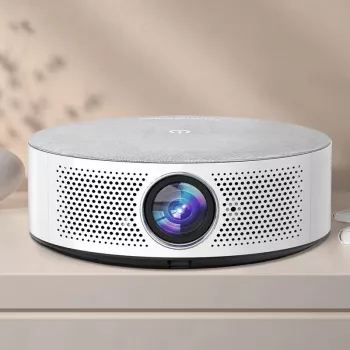
- Auto Focus Full HD Projector with 5G WiFi, Bluetooth, and 150″ Display Support — a straightforward single-device option for quick focusing, wireless streaming, and big-screen viewing in a light-controlled room.
- Modern 2-Tier Faux Marble Coffee Table with Gold Metal Frame — a practical living-room surface for temporary projector placement, with space for a streaming device or game console on the lower tier.
- Electric Cotton Candy Machine with Cart – Commercial Candy Floss Maker — a fun add-on for movie nights and game-day watch parties when you want a “snack bar” vibe at home.
FAQ
Should you use auto focus?
Auto focus is worth using when the projector gets moved often or when you want fast startups with readable subtitles and menus. Manual focus can still be helpful for fine tuning in tricky setups (like angled placement or textured walls), but alignment and minimal keystone usually have a bigger impact on edge sharpness than repeatedly refocusing.
How do I fix my auto focus?
Clean the lens, stabilize the projector on a level surface, and reduce keystone by aligning the unit with the screen. Let the projector warm up, then restart and run focus again; if corner blur persists, it’s commonly caused by angle or distance issues, so test at a moderate screen size before pushing to the largest image.
Recommended for you

Balenciaga Oversized Fit: Should You Size Down?
May 18, 2026





Leave a comment