-
Shop
- Adidas
- Advanced Technologies
- Apple Accessories
- Best-Sellers
- Car Accessories
- Dating & Social Skills
- Digital Resources
- AI Skills
- Beauty
- Car Buying & Ownership
- Cozy Feast Collection
- Electronics & Technology
- Financial Education
- Hobbies
- Home Styling & Organization
- Mindset
- Online Business
- Parenting & Child Development
- Personal Style & Fashion
- Pet Lifestyle & Wellness
- Smart Life with AI
- Travel Planning
- Wellness
- Yoga & Fitness
- Education & Learning
- Family & Parenting
- Fashion
- Alexander McQueen
- Bags
- Bags & Wallets
- Balenciaga
- Belts
- Blazers
- Blouses & Shirts
- Bottega Veneta
- Brunello Cucinelli
- Burberry
- Chanel
- Chloé
- Dior
- Dolce & Gabbana
- Dresses
- Etro
- Fendi
- Gucci
- Hats & Hair Accessories
- Jacquemus
- Jewelry
- Jil Sander
- Keychains
- Kiton
- Luggage
- Luggage Bags
- Miu Miu
- Off-White
- Outerwear
- Prada
- Rick Owens
- Saint Laurent
- Socks & Tights
- The Row
- Tom Ford
- Valentino
- Valentino Garavani
- Versace
- Vivienne Westwood
- Watches
- Furniture
- Gadgets
- Health & Beauty
- Health & Wellness
- Home & Garden
- Kids & Babies
- Kitchen
- Lighting
- Patio, Lawn & Garden
- Personal Growth
- Pet Care
- Pet Supplies
- Pets
- Shoes
- Sport & Outdoors
- Stress Relief & Relaxation
- Travel
- Wealth
- Popular
- Best deals
Safe Netflix Login on Smart Projectors (Plus Updates)
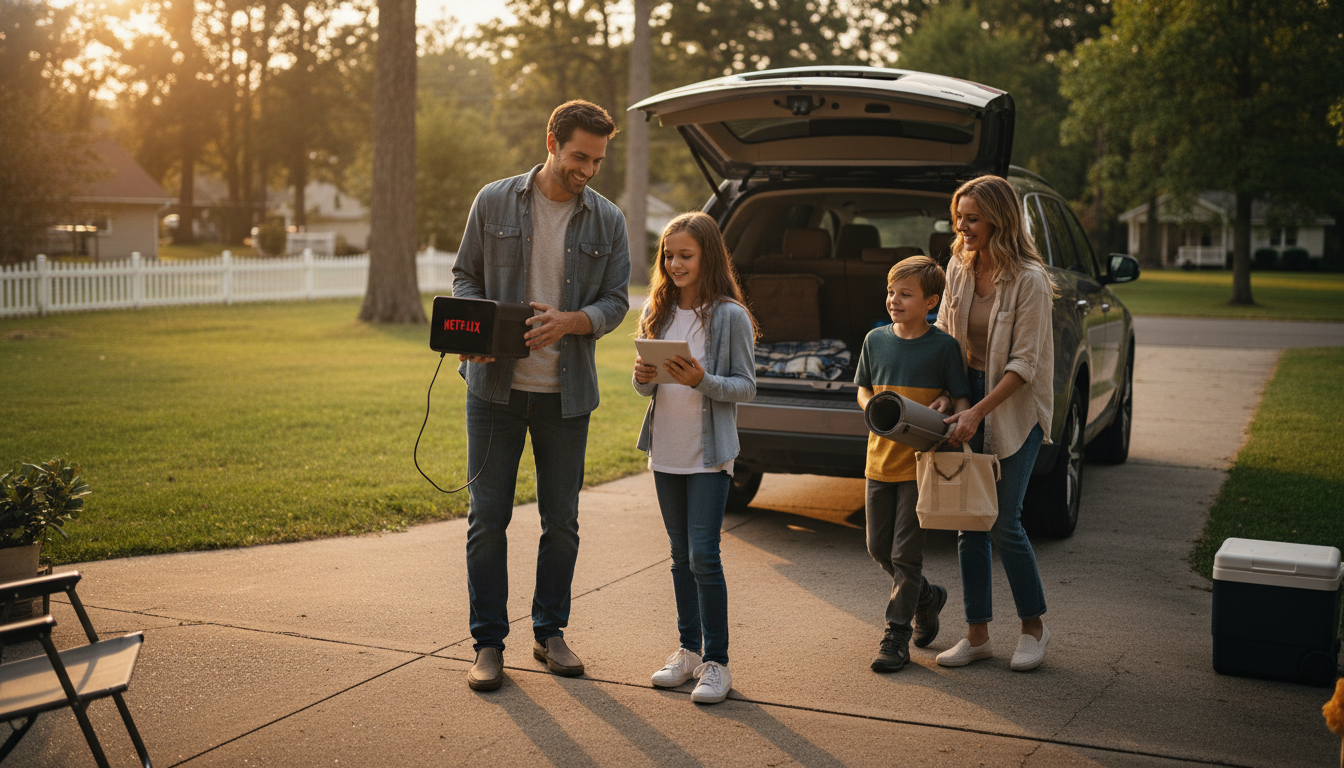
How do you log into Netflix on a smart projector safely and keep it updated?
Start by confirming your projector supports Netflix through an official method (a built-in certified app, a trusted streaming stick, or casting from a phone). Using official channels reduces the risk of unstable apps, login issues, and security gaps. Before signing in, connect the projector to a password-protected Wi‑Fi network (avoid public hotspots) and make sure the date/time settings are correct, since mismatched time can cause authentication errors.
Safe login steps
Open the Netflix app (or Netflix on your streaming device) and choose the sign-in option. If you’re offered a QR code or “sign in from the web,” use it—this keeps your password off the projector’s on-screen keyboard. If you must type your password, do it in a private space and disable any “remember me” option unless the projector is in a controlled room. After logging in, verify the account profile and playback starts normally, then exit to the home screen.
Account protection and privacy tips
Turn on two-factor authentication for the email account tied to Netflix, and use a strong, unique Netflix password. If the projector is shared, set a Netflix profile PIN to limit access and browsing. When traveling or lending the projector, sign out of Netflix afterward and remove saved Wi‑Fi networks so others can’t reconnect automatically.
Keeping Netflix and the projector updated
Updates matter because they patch bugs and security vulnerabilities. On Android TV/Google TV projectors, enable automatic updates in the app store and periodically check for Netflix updates manually. Also install firmware/system updates in the projector’s settings, then restart the device to apply changes cleanly. If your projector doesn’t reliably update or isn’t Netflix-certified, using a reputable streaming stick can provide more consistent app updates over time.
For a deeper walkthrough and troubleshooting tips, visit the full guide here.
FAQ
What should you do if Netflix keeps signing you out on a projector?
Update the Netflix app and the projector’s system firmware, then restart the device. If it still happens, sign out on all devices from your Netflix account settings and sign back in, and avoid unstable networks that can trigger repeated re-authentication.








Leave a comment